Raspberry Pi4にUbuntu 18.04をインストールしたときのメモ。このメモはPi4の4GB RAM用です。メモリ8GBの場合、ここで紹介しているプリインストールサーバーイメージをインストールするとブートができないという不具合があります(2020-8-4現在)。
メモリ8GBのPi4にUbuntu18.04をインストるするときは以下のリンクを参考にしてください。
参考リンク
準備
- Windows10 PC
- Raspberry Pi4(メモリ4GB版)
- SDカード: 64GB以上が望ましい
- 32GB以上のSDカードはexFATでフォーマットされているので、FAT32にフォーマットし直す。
- ディスプレイ(HDMI接続できるもの)、マウス、キーボード
- LANケーブルと無線LAN
インストール
- このサイトから以下のUbuntu 18.04.4 LTSのRaspberry Pi3 (64-bit ARM)プリインストールサーバーイメージをダウンロードする。Pi2,3,4まで対応している。
- まず、以下のWindows用のツールRaspberry Pi Imagerをダウンロード・インストールする。ダウンロードしたimager.exeファイルをダブルクリックするとインストーラが起動してインストールできます。
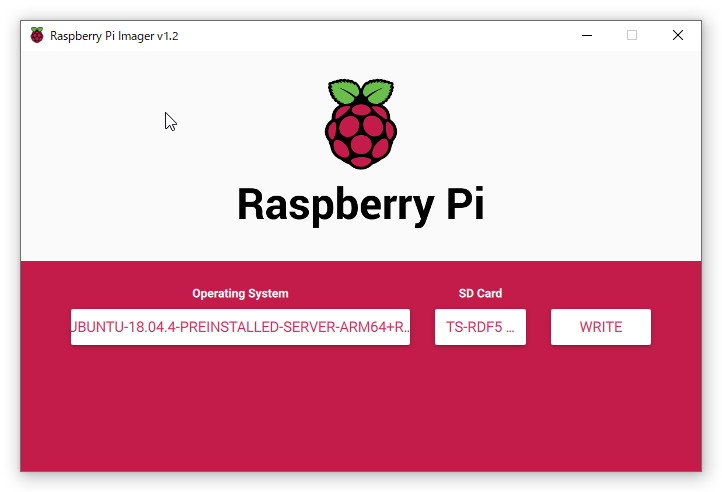
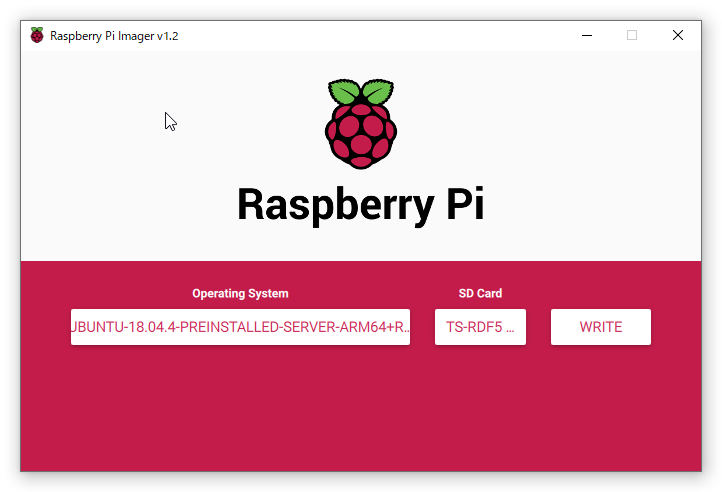
- Raspberry Pi Imagerを起動して、Operating SystemにUse customを選択して、ダウンロードしたファイルubuntu-18.04.4-preinstalled-server-arm64+raspi3.img.xzを選択する。Ubuntuを書き込むSD Cardを選択する。次に、SD Cardの右にある「WRITE」をクリックしてイメージをSD Cardに書き込む。終了したらSDカードを取り外しRaspberry Pi4(以下Pi4と記載)に挿入する。
Ubuntu起動
- Pi4にディスプレイ、キーボード、マウス、有線LAN、電源を接続する。
- 起動すると以下のlogin画面になるのでユーザ名 ubuntu、パスワード ubuntuを入力する。パスワードを変更するように聞かれるので変更する。
- Ubuntu login: ubuntu
Password: ubuntu
You are required to change your password immediately (root enforced)
Changing password for ubuntu.
(current) UNIX password: ubuntu
Enter new UNIX password: 新しいパスワードを入力する。
Retype new UNIX password: 同じ新しいパスワードを入力する。
- Ubuntu login: ubuntu
- アップデート
- $ sudo apt update
- $ sudo apt upgrade
- インストールしたのがサーバー版なのでGUI環境がないのでデスクトップ環境をインストールする。ここでは以下のコマンドで軽量デスクトップxubuntuをインストールする。
- $ sudo apt install xubuntu-desktop
- 次のコマンドでPi4を再起動するとデスクトップ環境を使えるようになる。
- $ sudo reboot
設 定
- 日本語化
- 左上隅のマウスアイコン→Settings→Language Support
- [Install/Remove Languages..]
- Japaneseにチェックを入れて、[Apply]をクリックする。
- Language for menu and windowsの[English]が太文字で表示され、[日本語]は薄文字で表示されているので、[English]をドラッグして日本語の下に持っていく。そうすると日本語が優先される。
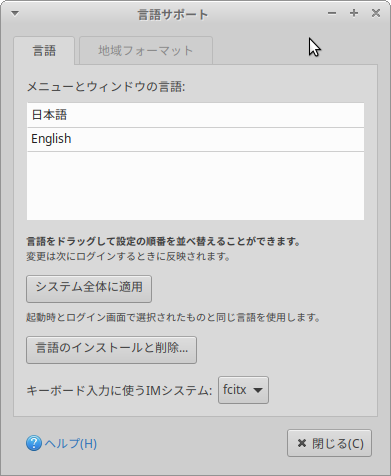
- Keyboard Input method system
- fcitxを選択する。ない場合は再起動すると現れる。
- [Install/Remove Languages..]
- 左上隅のマウスアイコン→Settings→Language Support
- キーボード
- マウス→Settings→Keyboard→Layout
- Use system defaultsのチェックを外す。
- Keyboard layout
- Add →Japanese (OADG 109A)
- Keyboard model
- Sun Type 7 USB(Japanese)/Japanese 106-key
- マウス→Settings→Keyboard→Layout
- 日本語変換 (Mozc)の設定
- 画面上バーの右にあるキーアイコンをクリックする。

- 設定をクリックする。
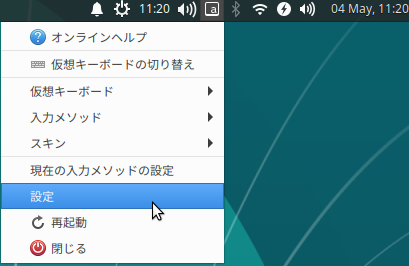
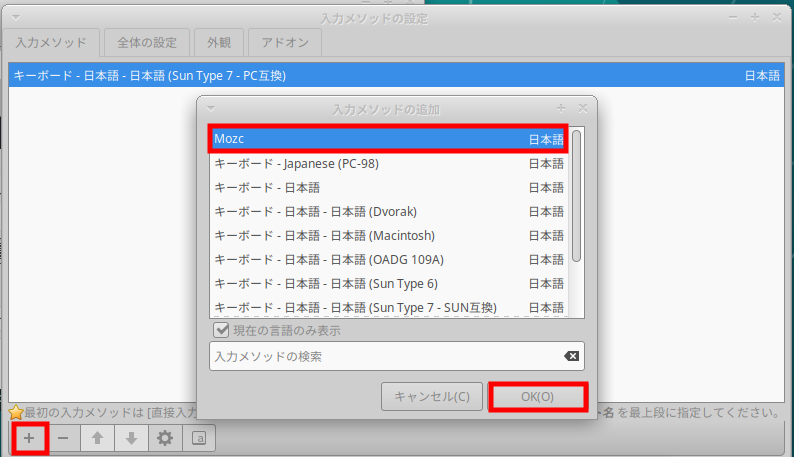
- 入力メソッド→ [+ ] → Mozc → [OK]をクリックする。
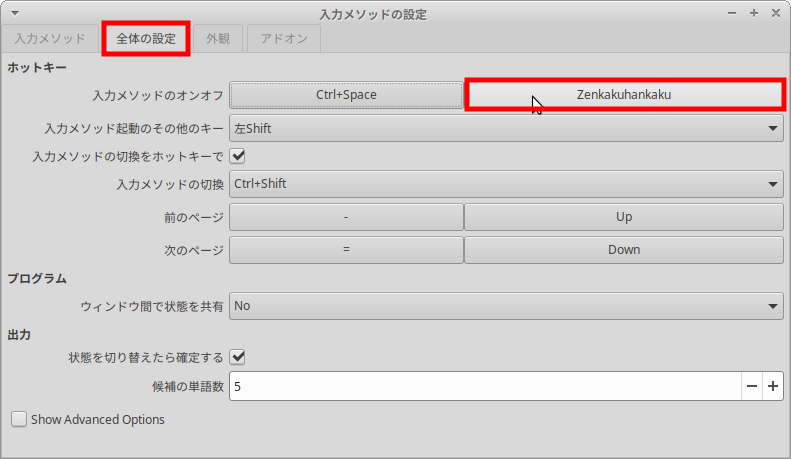
- [全体の設定]タブをクリックして、[入力メソッドのオンオフ]の[Ctrl+Space]の右の空白ボタンをクリックして、キーボードの[半角/全角]キーを押すと[Zenkakuhankaku]と表示される。これでWindows10と同様にキーボードの[半角/全角]キーを押すと日本語入力が可能となる。
- 画面上バーの右にあるキーアイコンをクリックする。
- タイムゾーン
- マウス→Settings→Time and Data Settings。Unlockをクリックしてパスワードを入力する。
- Time zone: Asia/Tokyo
- マウス→Settings→Time and Data Settings。Unlockをクリックしてパスワードを入力する。
- ユーザ登録
- マウス→Settings→Users and groups
- Addをクリックして普段ログインする一般ユーザを設定する。再起動する。
- マウス→Settings→Users and groups
- 一般ユーザでsudoできるようにする
- Ubuntuなら一般ユーザでsudoできるのだが、なぜか今回できないのでできるようにする。
- $ sudo gpasswd -a ユーザ名 sudo
- Ubuntuなら一般ユーザでsudoできるのだが、なぜか今回できないのでできるようにする。
- 一般ユーザでデバイスを扱えるように各グループに追加する。
- $
sudo groupadd -f --system gpio - $
sudo groupadd -f --system i2c - $
sudo groupadd -f --system input - $
sudo groupadd -f --system spi - $ sudo groupadd -f –system video
- $
- SWAPファイル
- Pi4はメモリを4GB搭載しているが、少し心もとないのでSWAPファイル8GBを以下のコマンドで作成して使えるようにする。SDカードの容量に応じて8GBを変更する。
- $ sudo fallocate -l 8G /swapfile
- $ sudo chmod 600 /swapfile
- $ sudo mkswap /swapfile
- Swapが割り当てられているか次のコマンドで確認する。Swapに8.0G割り当てられいたら成功。
- $ free -h
total used free shared buff/cache available
Mem: 3.7G 1.4G 1.0G 168M 1.3G 2.1G
Swap: 8.0G 0B 8.0G
- $ free -h
- 起動時に自動的にswapfileが使えるように/etc/fstabに以下の1行を追加する。
- /swapfile none swap sw 0 0
- Pi4はメモリを4GB搭載しているが、少し心もとないのでSWAPファイル8GBを以下のコマンドで作成して使えるようにする。SDカードの容量に応じて8GBを変更する。
- Accelerated X ドライバ
- sudo add-apt-repository ppa:ubuntu-pi-flavour-makers/ppa
- sudo apt update
- accelerated x.org video ドライバ(fbturbo)が利用。ただし、ウインドウの移動やスクロールに制限がある。以下のコマンドでインストールする。
- $ sudo apt-get install xserver-xorg-video-fbturbo
- /etc/X11/xorg.conf を作成して以下を追加する。
Section “Device”
Identifier “Raspberry Pi FBDEV”
Driver “fbturbo”
Option “fbdev” “/dev/fb0”
Option “SwapbuffersWait” “true”
EndSection
- CAPS LOCKをCTRLキーに替える
- /etc/default/keyboardのXKBOPTIONS=”ctrl:nocaps”と変更する。
- SSH
- PCからWifi経由でPi4を使うためにSSHの設定を行う。まず、SSHサーバーをインストールする。すでに入っている場合は必要ない。
- $ sudo apt install openssh-server
- 次のコマンドでPi4のWifiのIPアドレスを調べ、アドレスをメモする。下の例では192.168.1.18。DHCPの場合は起動ごとにアドレスが変更するので固定すると良い。
- $ ifconfig wlan0

- PCからWifi経由でPi4を使うためにSSHの設定を行う。まず、SSHサーバーをインストールする。すでに入っている場合は必要ない。
- 固定IPの設定法
-
- 以下の記事を参考にした。その説明によるとUbuntu ServerをインストールしたのでNetplanが使われると思ったが、Xubuntu Desktopを後でインストールしたためか私の環境ではNetwork Managerが使われているのでその設定を行った。
- ここでは、次のように設定する。
- IPアドレス:192.168.1.234
- サブネットマスク:255.255.255.0
- ゲートウェイ:192.168.1.1
- ネームサーバ: 192.168.1.1 8.8.8.8
- 以下のコマンドでデバイス名を調べる。NAMEの下の「デバイス名」のところをメモする。
- $
nmcli connection show
- $
NAME UUID TYPE DEVICE
デバイス名 85d236d2-7a46-40aa-xxxx-xxxxxxxxxf wifi wlan0
-
- 以下の長いコマンドで設定する。デバイス名は上の作業でメモしたデイバス名を入れる。
- $
sudo nmcli connection mod "デバイス名" ipv4.addresses "192.168.1.234/24" ipv4.gateway "192.168.1.1" ipv4.dns "192.168.1.1,8.8.8.8" ipv4.method "manual"
- $
- 設定が終わったら再起動してIPアドレスを確認する。
- 以下の長いコマンドで設定する。デバイス名は上の作業でメモしたデイバス名を入れる。
- Windows PCの場合はrloginなどのSSHクライアントソフトなどをインストールして、サーバー名に上でメモしたIPアドレスを入れてログインできるか確認する。なお、ここでは簡単のためにセキュリティを高める設定はしていないので、必要に応じて以下のリンクなどを参考にセキュアな設定して欲しい。
- オーバークロック(非推奨)
- お勧めできません。あくまで自己責任でお願いします。
- 現在状況の把握
- まず、現在の周波数を調べるアプリをインストールする。
- $ sudo apt install cpufrequtils
- 次のコマンドを実行して調べる。
- $ cpufreq-info
hardware limits: 600 MHz – 1.50 GHz
- $ cpufreq-info
- 現在のCPUが1.5GHzということがわかる。
- まず、現在の周波数を調べるアプリをインストールする。
- /boot/firmware/config.txtの最後に以下を追加して再起動。なお、私の環境ではover_voltage=4、arm_freq=2000にするとOSが起動しなかった。
over_voltage=2
arm_freq=1750
gpu_freq=650 - 無事に起動したら次のコマンドで再確認。無事に起動しなかったら、SDカードをPi4から外して、Windows PCでconfig.txtの設定をもとに戻す。
- $ cpufreq-info
hardware limits: 600 MHz – 1.75 GHz
- $ cpufreq-info
- 無事、1.75GHzまで最高周波数が上がっているのがわかる。
便利なアプリのインストール
- 以下のコマンドを実行する。
- $ sudo add-apt-repository ppa:ubuntu-raspi2/ppa
- $ sudo apt update
- $ sudo apt install libraspberrypi-bin libraspberrypi-dev
- $ sudo apt install git
感 想
- Raspberry Pi3のときはメモリが1GBとUSB2.0しか使えないことがネックになっていた。Pi4の4GBはFull HDでもかなり快適に使える。USB3.0を使えることも大きい。ロボットの搭載コンピュータとしてもかなり活躍するだろう。


コメント